10 UX Mistakes That Make Users Abandon Your Website
Discover 10 common UX mistakes that drive visitors away from websites, with practical examples, usability fixes, and a checklist to improve user experience.

Imagine finding a website that seems to offer exactly what you need. You open it, look for the price, and tap a button. Nothing happens. You try the menu, but it covers half the screen. Then a newsletter popup asks for your email before you have read a single sentence.
You might stay and work through it. But if another website makes the same task easier, why would you?
The UX mistakes that make users abandon a website are usually forms of friction: unclear messaging, difficult navigation, slow or unstable pages, poor mobile layouts, interruptions, confusing actions, demanding forms, accessibility barriers, missing trust information, and unhelpful feedback. The good news is that many of these problems can be found without redesigning the entire site.
This guide explains ten mistakes, shows what each looks like in practice, and gives you specific ways to fix them. It ends with a 15-minute first-pass UX audit you can use on your own website.
What does website abandonment actually mean?
Website abandonment happens when a visitor leaves without completing the task they came to do. That task might be reading an answer, comparing a product, requesting a quote, booking an appointment, or buying something.
Leaving is not automatically a design failure. Someone may find the information they needed and depart satisfied. Others may be researching options, distracted, or not ready to purchase. A page exit alone cannot tell you why a person left.
The useful question is more specific: Where does the website make an intended task unnecessarily difficult, and what evidence suggests that difficulty matters?
The Nielsen Norman Group’s usability heuristics (opens in a new tab) provide a helpful foundation: interfaces should make system status understandable, use familiar language, support user control, prevent errors, and favor clarity over unnecessary complexity. The examples below apply these principles to everyday websites.
1. Visitors cannot tell what your website offers
A striking hero image and a clever slogan may impress a design team. Neither helps much if a new visitor still has to guess what the business does.
Imagine a bookkeeping service whose homepage says:
Empowering tomorrow through connected possibilities.
That sounds polished, but it does not answer who the service is for or what problem it solves. A clearer alternative would be:
Online bookkeeping for small businesses. Track income, manage expenses, and prepare for tax season with one organized service.
The second version may not be as dramatic, but it gives a potential customer something concrete to evaluate.
Make the first screen answer three questions:
- What is this website or service?
- Who is it for, or what problem does it solve?
- What can I do next?
Use a descriptive heading, a short supporting explanation, and a relevant primary action. Keep decorative elements from competing with that message. The Nielsen Norman Group’s work on perceived value (opens in a new tab) explains why first impressions influence visitors’ expectations and willingness to continue.
Quick test: Show your homepage to someone unfamiliar with your business for a few seconds. Hide it, then ask them to explain what you offer. If their answer is vague, improve the message before changing the color palette.
2. Navigation makes people hunt for basic information
Your navigation is a map. If visitors cannot understand it, they spend energy guessing instead of making progress.
A consulting website might hide its pricing, service descriptions, and contact details behind labels such as Discover, Explore, and Universe. These names may fit the brand voice, but they do not tell people where to click.
Try labels that match visitors’ expectations, such as Services, Pricing, Case Studies, and Contact. Keep the most useful destinations easy to find. If your website has many pages, group them by meaningful topics rather than forcing everything into a single crowded menu.
Also check the journey after the first click:
- Does the page title match what the link promised?
- Can people recognize where they are?
- Can they move back without losing their place?
- Can keyboard and touch users operate the menu reliably?
A menu does not become better simply because it has fewer items. The goal is a structure people can understand. For a practical planning approach, see our website development guide, which covers sitemaps and user journeys before coding begins.
3. The mobile version feels like a squeezed desktop website
A layout that works with a mouse, large monitor, and full-width keyboard can break down on a phone. Text becomes tiny, navigation overlaps content, and important buttons sit too close together.
Picture someone trying to request a home repair quote while standing outside. The form opens, but the keyboard covers the submit button. They scroll, accidentally tap the neighboring link, and lose their progress. The website is technically responsive, yet the experience is frustrating.
Design for the task, not just the screen width
Test the actual website on a small phone, not only in a desktop browser preview. Check whether visitors can read without zooming, tap controls reliably, open and close menus, and finish forms with the keyboard visible.
For web accessibility, WCAG 2.2’s Target Size (Minimum) (opens in a new tab) criterion generally requires pointer targets of at least 24 by 24 CSS pixels, with specified exceptions such as adequate spacing. That is a minimum accessibility requirement, not a reason to make every touch control as small as possible. Comfortable sizing and spacing should reflect the task and device.
Try it yourself: Complete your most important conversion journey on the smallest phone available to your team. Note every point where you have to zoom, tap twice, or move the keyboard out of the way.

4. Pages load slowly, react late, or jump around
A visitor can be interested in your content and still struggle to use it. A large image may delay the main content, a complex script may make buttons feel unresponsive, or an advertisement may shift the page just as someone tries to tap a link.
Google’s Core Web Vitals (opens in a new tab) help measure three different parts of this experience:
| Metric | What it measures | Google’s recommended good threshold |
|---|---|---|
| Largest Contentful Paint (LCP) | When the main visible content loads | 2.5 seconds or less |
| Interaction to Next Paint (INP) | How quickly the page responds to user interactions | 200 milliseconds or less |
| Cumulative Layout Shift (CLS) | Unexpected movement of visible content | 0.1 or less |
These thresholds are assessed at the 75th percentile of real page visits, not as a rule that every individual visitor must have the same experience. A passing score is useful, but it does not prove a website has excellent UX.
Practical improvements might include properly sized images, fewer unnecessary scripts, reserving space for media, and avoiding heavy third-party widgets on critical pages. Use PageSpeed Insights (opens in a new tab) for an initial assessment, then review real-user data where it is available.
Do not replace user research with a single performance score. Watch what happens when a person actually tries to navigate, search, and submit information.
5. Popups interrupt visitors before they receive any value
You open an article to learn how to solve a problem. Before you read the introduction, a full-screen subscription popup appears. You close it, only to see another request for notifications.
Each interruption asks for attention the website has not yet earned.
This does not mean every dialog is bad. A necessary confirmation, an accessible consent interface, or a warning about an important action can serve a real purpose. The problem is an intrusive interruption that blocks the person’s current goal.
Google’s guidance on intrusive interstitials (opens in a new tab) recommends making content accessible without unnecessary obstruction and suggests less disruptive banners for many promotional messages.
A better approach: Let visitors engage with the content first. Offer newsletter signup where it is contextually useful, avoid repeated prompts after a dismissal, and make any necessary dialog easy to understand and operate. Do not hide or manipulate legally required consent choices to make a signup look more successful.
6. Everything looks important, so nothing stands out
Picture a product page with a sale banner, animated carousel, chat bubble, two equally bright buttons, three promotional badges, and a sticky subscription bar. The page may look energetic, but the visitor still cannot tell what to do next.
This is a visual hierarchy problem. Size, spacing, contrast, headings, and placement should help people recognize what matters at each stage.
On a product page, the most useful sequence could be:
- Understand the product and its key details.
- Check the price, availability, and delivery information.
- Choose an option and add it to the cart.
A button labeled Add to cart explains the next step more clearly than Go. Secondary actions such as Save for later can remain visible without looking identical to the primary action.
Ask someone unfamiliar with the page: What would you click to complete this task? If they have to scan the entire screen, simplify the competing elements or clarify the action label.
A bold CTA alone is not a conversion strategy. Its promise must match the next screen, and the action must work.
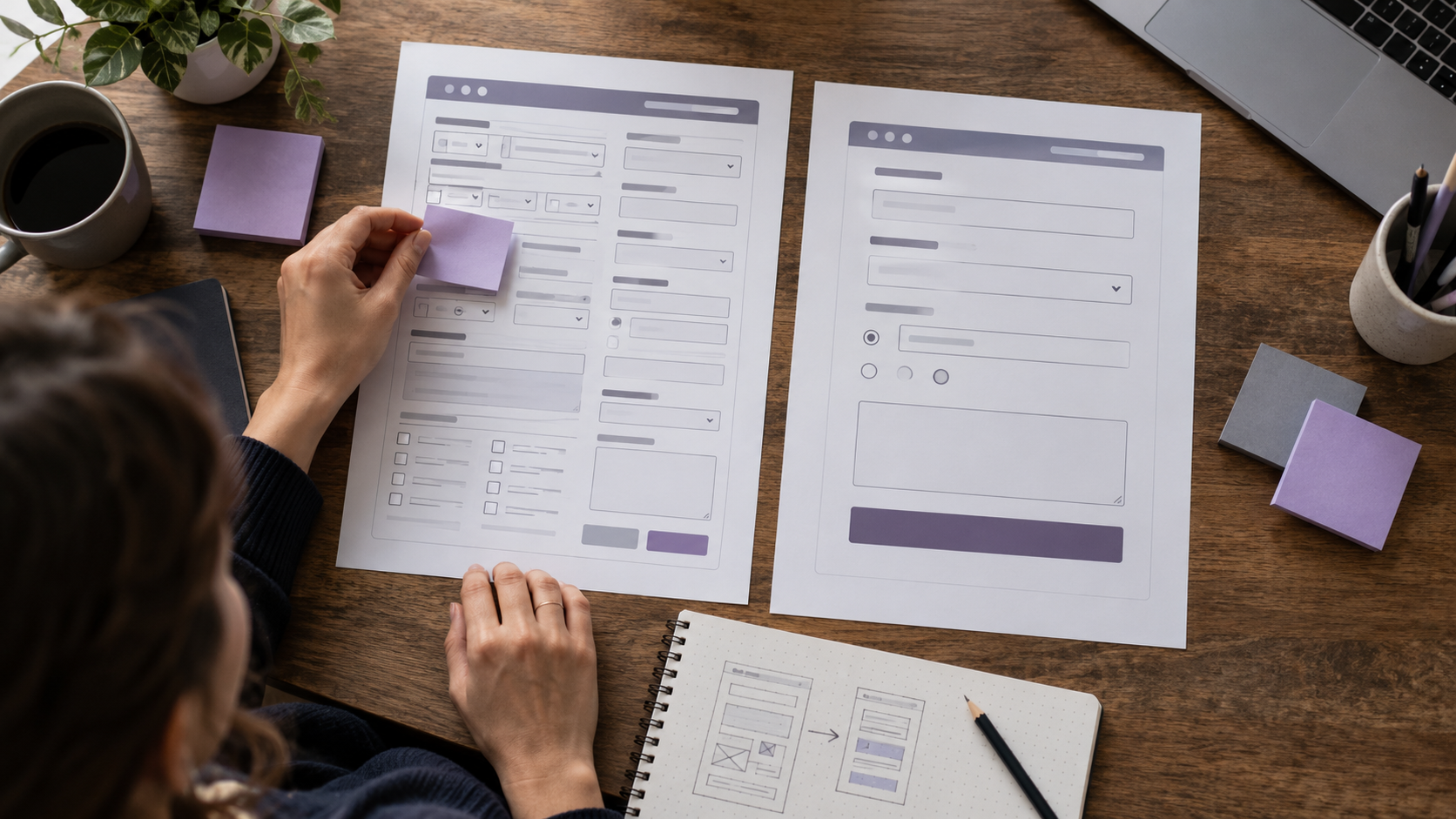
7. Forms demand too much and punish small mistakes
Forms often appear at the point where a visitor has decided to act. A contact form that requests a full address, date of birth, company size, preferred contact hour, and account password may feel like an application process when someone only wants an estimate.
Consider a fictional web design studio. A visitor wants to ask about a website redesign. Compare these approaches:
| Frustrating experience | More useful approach |
|---|---|
| Require account registration before sending an inquiry | Allow an inquiry without creating an account |
| Ask for ten fields before explaining the service | Start with the minimum details needed to respond |
| Show “Invalid input” after submission | Explain which field needs correction and how to fix it |
| Clear the entire form after one mistake | Preserve completed answers and show errors beside the relevant fields |
| Display no confirmation | Explain whether the request was received and what happens next |
These are illustrative design choices, not the result of a Glimpz AI client experiment.
The GOV.UK Design System’s error-message guidance (opens in a new tab) recommends specific instructions near the affected field and preserving answers when validation fails. For example, Enter an email address in the format [email protected] gives a person more useful information than Error 400.
For ecommerce, the Baymard Institute’s checkout research (opens in a new tab) identifies problems such as forced account creation and checkout friction as reasons some shoppers abandon purchases. Not all checkout abandonment is caused by UX, so investigate your own audience rather than assuming a universal reason.
Before removing a field, check whether it is genuinely needed for safety, fulfillment, legal obligations, or customer support. The aim is to remove unnecessary work, not important information.
8. Accessibility is treated as optional decoration
Some UX mistakes do more than irritate visitors. They can prevent people from using a website at all.
Examples include pale text on a light background, menus that cannot be opened with a keyboard, unlabeled form fields, information shown only through color, and focus indicators hidden beneath sticky headers.
WCAG 2.2’s Contrast (Minimum) (opens in a new tab) criterion generally requires a contrast ratio of at least 4.5:1 for normal text and 3:1 for large text, subject to specified exceptions. Contrast is only one part of accessibility. Usability also depends on keyboard access, meaningful labels, predictable focus, error identification, and compatibility with assistive technology.
Start with a simple manual review:
- Navigate a complete task using only the Tab, Shift+Tab, Enter, and arrow keys as appropriate.
- Check that keyboard focus remains visible and is not covered by floating controls.
- Zoom the page and increase text size to see whether information or actions disappear.
- Test important forms with a screen reader, and include people with disabilities in research whenever possible.
Automated accessibility scans can identify some problems, but they cannot establish that a website is accessible or easy to use in real life. A visible keyboard focus indicator (opens in a new tab) is one example of a behavior that deserves direct testing.
Accessibility work improves access to the same tasks everyone else needs to complete. It should be built into design and development rather than postponed until the end.

9. Important trust information is missing or difficult to find
Someone about to pay, submit personal information, or book a service reasonably wants to know what they are agreeing to.
A product page without delivery costs, a subscription without a clear renewal explanation, or a company website without a credible way to contact the business creates uncertainty. The visitor may not have proof that anything is wrong. They simply lack the information needed to decide.
Build trust with details you can substantiate:
- Explain pricing, fees, recurring charges, and relevant limitations before commitment.
- Provide working contact methods and clear policies suitable for your service.
- Identify who operates the website where that information helps visitors assess legitimacy.
- Use authentic reviews and testimonials only when they are genuine and you have the right to publish them.
- Describe security and privacy practices accurately rather than adding invented trust badges or unsupported guarantees.
A clean layout supports credibility, but transparent business practices matter more than decorative symbols. A checkout flow should not reveal significant charges only at the last step.
10. The website never explains what just happened
You press Send request. The button becomes grey. There is no spinner, success message, error explanation, or email confirmation. Did the request go through? Should you submit again?
That uncertainty is a UX problem. It may also create duplicate actions, especially when payments or bookings are involved.
Good interfaces make meaningful system states visible, one of the Nielsen Norman Group’s core usability principles (opens in a new tab).
For a contact form, that might mean showing a submission state followed by a clear confirmation. If delivery fails, explain what the visitor can do without deleting their answers. For a payment, distinguish processing, completed, and failed using reliable transaction state rather than guessing from a button click.
Also examine empty states, unavailable services, expired sessions, and broken links. An error page can still guide someone back to a relevant destination.
A useful recovery test: Disconnect the network while attempting a non-destructive form submission in a controlled test environment. Does the interface explain the failure and preserve the entered data? Never use this test in a way that risks creating duplicate real payments or orders.
A 15-minute website UX audit you can try today
You do not need a full research budget to make an initial list of likely friction points. This quick audit is a first pass, not a substitute for usability testing or accessibility assessment.
Choose one important visitor task before starting. For example: Find a service, understand the price, and send an inquiry from a phone.
| Time | What to do | What to write down |
|---|---|---|
| Minutes 1 to 3 | Open the landing page as a first-time visitor | Is the purpose and next action clear? |
| Minutes 4 to 6 | Try the navigation and find essential information | Which labels or steps cause hesitation? |
| Minutes 7 to 9 | Repeat the journey on a phone | Any overlapping elements, tiny controls, or hidden buttons? |
| Minutes 10 to 12 | Complete the form or other key interaction | Unnecessary fields, confusing errors, lost progress, unclear confirmation? |
| Minutes 13 to 15 | Check a performance report, keyboard access, and obvious trust gaps | What needs closer investigation or a dedicated test? |
Use this copyable checklist to record what you actually observe:
- The first screen explains the website’s purpose.
- Main navigation labels make sense without explanation.
- Important content and controls are usable on a small phone.
- The main page content loads without obvious delays or disruptive shifts.
- Promotional overlays do not block the primary task.
- Each important page has an understandable next action.
- Forms ask only for information needed at that stage.
- Errors explain what to fix and preserve existing answers.
- The key journey is keyboard-usable and has readable contrast.
- Pricing, policies, and other trust information are accurate and findable.
- Submissions and failures produce clear, reliable feedback.
Don’t turn this list into a fictional score. For each issue, record the page, affected task, reproducible problem, and a possible fix. Screenshots or screen recordings taken with appropriate permission can help teammates understand what happened.
Which UX mistake should you fix first?
Start with problems that block a task, affect many visitors, or create meaningful risk. A broken payment confirmation, inaccessible main navigation, or form that discards important answers generally deserves attention before minor spacing inconsistencies.
A simple priority table helps:
| Observed problem | Impact on the user | First action |
|---|---|---|
| Submit button is hidden on a small phone | Blocks an important task | Fix responsive layout and retest |
| Form displays a vague error | Makes recovery difficult | Add specific field-level guidance |
| Hero image is unusually heavy | May delay useful content | Check LCP and optimize the asset |
| Decorative icon has uneven spacing | Primarily visual polish | Schedule after critical issues |
These are example priorities, not findings from a live website. Adjust them to what your own observations and user evidence show.
How do you know whether your UX fixes worked?
A cleaner interface is not automatically a more effective interface. Define the user task and decide how you will evaluate a change before making it.
For example, imagine an appointment-booking website where 200 eligible visitors start a booking and 120 complete it in one defined period. Its booking-flow completion rate is:
120 completed bookings / 200 booking starts × 100 = 60%
This is a fictional calculation for illustration, not a measured industry benchmark. If the rate changes after you simplify the form, you still need to consider traffic source, sample size, seasonality, and other simultaneous changes. An observed difference alone does not establish that the redesign caused it.
Combine different kinds of evidence when possible:
- Behavioral data: Where in a defined journey do people stop or encounter errors?
- Task observation: Which moments confuse real participants, and what do they try next?
- Technical measurements: Are performance and reliability problems affecting the journey?
- Outcome measures: Are more eligible users completing the intended task, without increasing complaints or errors?
Remember that a visitor leaving after reading the answer to a question may represent success, not abandonment. Measure the outcome that fits the page’s purpose.
For a related process focused specifically on mobile applications, read our mobile app UI/UX checklist.
Frequently asked questions
What is the biggest UX mistake on a website?
There is no single biggest mistake for every website. A checkout site may lose willing buyers because of payment errors or unexpected costs, while a service website may fail because visitors cannot understand the offer or find the inquiry form. Prioritize the problems that obstruct your audience’s most important tasks.
Can poor UX increase website abandonment?
Yes, usability barriers can contribute to people leaving before completing a task. But not every exit is caused by poor UX. Compare drop-off points with user observations, errors, and page intent before assigning a cause.
Does better UX automatically improve conversion rates or Google rankings?
No. Clearer interactions and faster pages can improve a user’s experience, but conversion outcomes depend on many factors, including demand, pricing, relevance, and trust. Google also advises evaluating the overall page experience (opens in a new tab) rather than treating any one metric as a ranking guarantee.
Do I need to redesign the whole website to fix UX problems?
Often, no. Improving unclear button labels, fixing a mobile menu, reducing unnecessary form fields, or explaining errors can remove specific obstacles without replacing the entire design. Larger structural problems may require a broader redesign, but research should guide that decision.
Make your website easier to use, one task at a time
The most damaging UX mistakes are not always visually obvious. They appear when a visitor cannot understand the offer, find what they need, complete a form, recover from an error, or trust what happens next.
Start with one real journey. Watch where it becomes difficult. Fix the problem you can demonstrate, and check whether the change actually helps. That’s a more useful approach than changing an entire website simply because a new design trend looks appealing.
If you are planning a website redesign or want to discuss usability problems affecting an important customer journey, contact Glimpz AI (opens in a new tab) to share the task visitors are trying to complete and the obstacles you have found.
References and further reading
The practical suggestions in this article are informed by established UX research, web performance documentation, and accessibility guidance. These references offer principles and testing methods, not guaranteed outcomes for any individual website.
- Nielsen Norman Group: 10 Usability Heuristics for User Interface Design (opens in a new tab)
- Nielsen Norman Group: Perceived Value in User Interfaces (opens in a new tab)
- Google web.dev: Web Vitals (opens in a new tab)
- Google Search Central: Interstitials and Dialogs (opens in a new tab)
- W3C: WCAG 2.2 Target Size (Minimum) (opens in a new tab)
- W3C: WCAG 2.2 Contrast (Minimum) (opens in a new tab)
- GOV.UK Design System: Error Messages (opens in a new tab)
- Baymard Institute: How to Reduce Cart Abandonment (opens in a new tab)
Keep exploring


Join the conversation
Keep comments respectful and relevant. Please don't share private or sensitive information.
Discussion (0)
Join the conversation