Mobile App UI/UX Checklist to Improve Conversions
Use this mobile app UI/UX checklist to find friction in onboarding, buttons, forms, accessibility, and performance, then test changes that matter.

You open an app to book an appointment. The service is available, the price looks reasonable, and you’re ready to confirm. Then the keyboard covers the next button. You dismiss it, scroll, lose your place, and wonder whether you really need to finish booking right now.
Nothing about the app’s color palette caused that problem. The experience got in the way of something you wanted to do.
That’s the question at the center of a useful mobile app UI/UX audit: What is making a willing user work harder than necessary?
This guide gives founders, designers, product managers, and developers a practical way to find that friction. You’ll audit one important conversion journey, check it against established platform and accessibility guidance, document problems, and decide what to test first. There’s a copyable checklist near the end, so you can work through the audit with your team.
What does conversion rate mean in a mobile app?
A conversion happens when someone completes an action that matters to your product. That might be creating an account, booking an appointment, finishing a purchase, starting a free trial, or saving a first project.
Mobile app conversion rate is the percentage of a defined group of eligible users or sessions that completes a specific action during a stated measurement period. The exact denominator depends on the question you’re asking.
For example, if 500 eligible users start a booking flow and 180 of those users finish the booking, the booking-flow completion rate is 36%:
(180 completed bookings / 500 users who started) × 100 = 36%
That is not necessarily the app’s overall purchase conversion rate. It tells you how one particular flow performed for a particular group of users.
Before changing a button or redesigning a screen, agree on three things:
- The conversion event: What action counts as success?
- The eligible audience: Who belongs in the denominator, and who doesn’t?
- The measurement window: Are you following users for one session, one day, or seven days?
Keep those definitions consistent when you compare before and after results. Otherwise, a seemingly improved conversion rate may simply reflect a change in measurement.
Step 1: Follow one real user journey, not every screen at once
Pick a single high-value task. If your app has both account creation and checkout, don’t combine them into one vague goal called “better engagement.”
Start with the action users are trying to complete. Write down every meaningful step from the moment the journey begins to its successful outcome.
For a hypothetical appointment-booking app, the flow might be:
Choose service → Pick time → Enter details → Review → Confirm booking
Now open the app on a real phone and attempt the journey as a new user. Then repeat it as a returning user. Notice the questions that arise naturally:
- Do I know what to do next without having to explore the entire screen?
- Can I go back without losing information?
- Do the labels explain what will happen when I tap?
- Is the next action reachable when the keyboard opens?
- Do I know whether the booking worked?
Record the screen, observed problem, affected users, and evidence. A screen recording with permission, a reproducible bug, a usability-test observation, or a funnel event is more useful than saying “the UI feels outdated.”
This approach echoes Apple’s design principles (opens in a new tab), which emphasize purpose, familiar interaction patterns, clear feedback, and helping people recover from mistakes.
Step 2: Audit buttons, touch targets, and action placement
A beautiful button is little help if someone struggles to tap it or cannot tell what it does.
Make the primary action obvious
On each critical screen, identify one action that should receive the most visual attention. A booking screen might say Confirm appointment, while a subscription screen might say Start free trial. Those labels tell people what will happen more clearly than a generic Continue.
Secondary actions should remain available, but they should not compete equally with the main task. The exception is a screen where users genuinely need to compare equally important choices.
Check the tappable area, not just the visible icon
Apple’s Human Interface Guidelines (opens in a new tab) recommend a hit region of at least 44 × 44 points for buttons on iOS. Android’s accessibility guidance (opens in a new tab) recommends touch targets of at least 48 × 48 dp. These are platform-specific design units, not identical numbers of physical pixels.
A small visible icon can still have a comfortably large tappable area if its surrounding padding is interactive. Check the actual hit target in the implemented app.
For web interfaces, WCAG 2.2’s Target Size (Minimum) (opens in a new tab) success criterion generally specifies 24 × 24 CSS pixels, with defined exceptions including sufficient spacing. That accessibility minimum is not a recommendation to shrink native-app buttons to 24 pixels.
Put actions where people can use them
Check whether important actions are reachable without awkward stretching, accidental taps, or interference from the device’s system controls. Bottom-aligned primary actions can be helpful in some flows, but they are not a universal conversion trick.
Try the screen on a smaller phone, with the keyboard open, and with larger system text. Make sure fixed buttons don’t cover fields, errors, or legal information. Respect iOS safe areas and adaptive layouts (opens in a new tab).
Audit question: Can someone complete the primary action on a small phone with one hand, without an accidental tap or a hidden control?

Step 3: Remove unnecessary work from onboarding and forms
This is often where the most useful fixes are surprisingly ordinary.
Imagine a user needs to book a haircut, but the app requires a profile photograph, a home address, a birthday, and a password before showing available appointments. Some details may be necessary for your product. Others may simply interrupt the user’s immediate goal.
Go through each field and ask: Why do we need this information at this moment?
Consider whether you can:
- Ask for information only when it’s needed to complete the task.
- Offer a guest path when an account isn’t required for the service.
- Preserve typed answers when someone moves backward or switches apps.
- Use a suitable keyboard for email addresses, phone numbers, and numeric values.
- Prefill known information with the user’s permission and an easy way to correct it.
- Explain unfamiliar terms beside the field instead of making the user leave the form.
Make error messages useful
“Something went wrong” doesn’t help someone fix an invalid phone number.
Try: Enter a phone number with the country code, such as +1 555 123 4567.
For a failed payment, explain whether a payment was charged, whether the booking was saved, and what the person can safely try next. Avoid repeated submissions that could create duplicate orders.
For web-based forms, WCAG’s Error Identification (opens in a new tab) criterion requires detected input errors to identify the field and describe the problem in text. The same principle is valuable in native apps, even though WCAG’s technical conformance rules are scoped differently.
Audit question: Could someone recover from a mistake without starting over or contacting support?
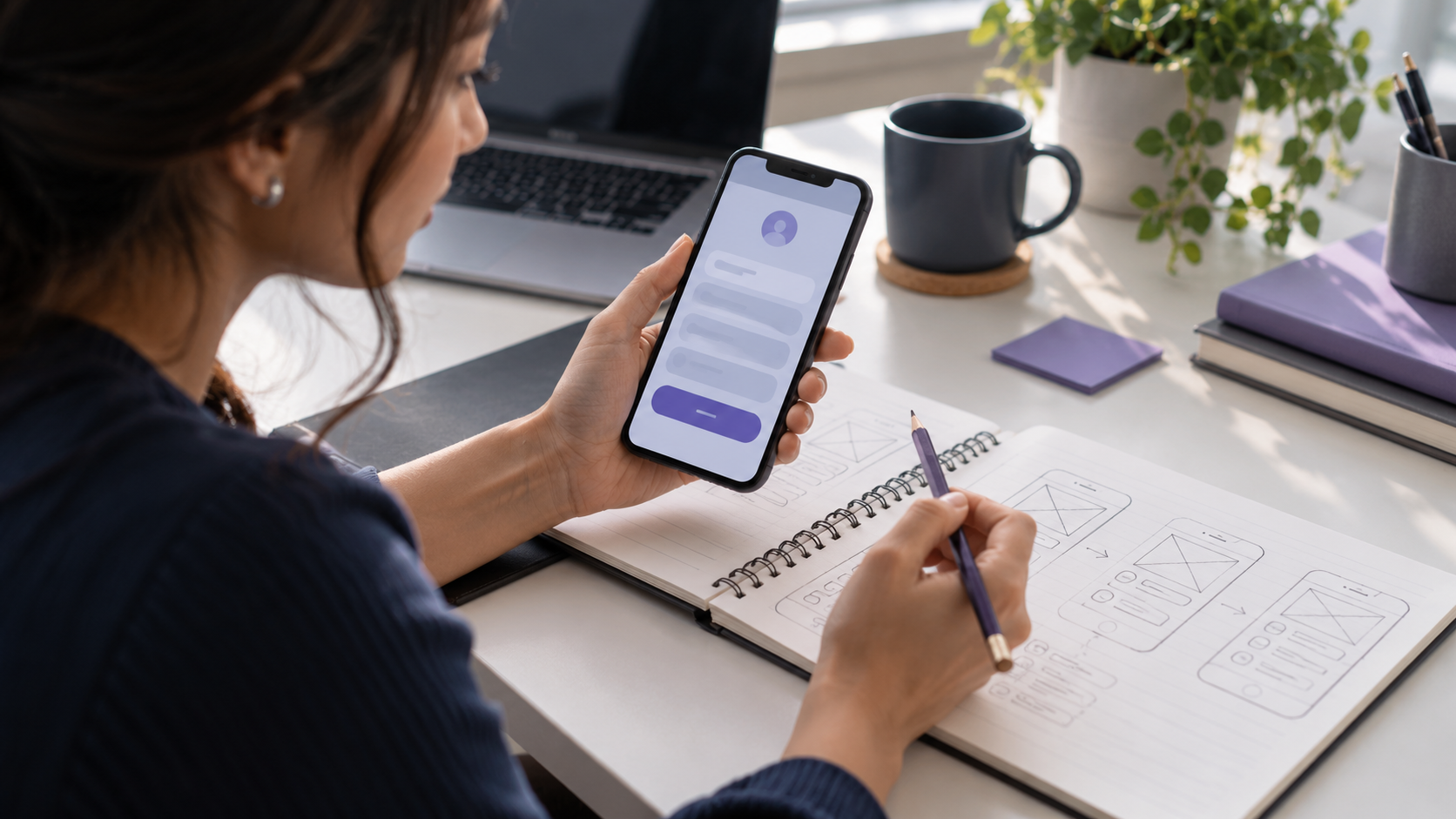
Step 4: Check navigation, feedback, and interaction patterns
People shouldn’t need to learn a custom navigation system before using a familiar type of app.
Look at the essentials:
- Does the back action return to the expected screen?
- Does the app preserve selections and form state when users go back?
- Are important actions visible without relying on an undiscoverable swipe gesture?
- Do loading, success, and failure states communicate what happened?
- Are destructive actions reversible or clearly confirmed when necessary?
Android’s navigation principles (opens in a new tab) describe navigation as a back stack of destinations. Apple’s feedback guidance (opens in a new tab) similarly stresses helping users understand actions, results, errors, and opportunities to recover.
A useful mini-test: Start a form, fill three fields, open another screen, then return. If the data has disappeared, record it as a problem even if the layout still looks perfect.
Animation should explain, not obstruct
Movement can show that a screen changed, a card expanded, or an action succeeded. It should not delay every step or make essential information impossible to access when reduced-motion settings are enabled.
Evaluate whether animations communicate an actual state change. Remove effects that are visually impressive but repeatedly slow down a frequent task.
Step 5: Investigate loading, responsiveness, and reliability
A user who taps Pay now and sees no response doesn’t know whether the app is processing, frozen, or charging them twice.
Review three separate situations:
- Starting the app: How quickly can the person see and use the first meaningful screen?
- Moving through the flow: Are screens responsive when data loads or the network slows down?
- Completing the action: Is progress visible, and is the final result reliable?
Apple’s loading guidance (opens in a new tab) recommends showing useful content as soon as possible, using placeholders where appropriate, and communicating progress during longer operations.
For Android, investigate startup behavior, dropped frames, app-not-responding events, and crashes with platform diagnostics. Android’s slow-rendering documentation (opens in a new tab) explains how frames that miss display deadlines can result in visible stutter.
Important distinction: If you’re auditing a mobile website or a web-based experience, you can also evaluate Google’s Core Web Vitals (opens in a new tab): LCP of 2.5 seconds or less, INP of 200 milliseconds or less, and CLS of 0.1 or less at the 75th percentile. Those are web page metrics. They are not universal benchmarks for native iOS or Android app screens.
Try the critical journey on a slower connection, with intermittent connectivity, and on a modest device. Document whether the experience fails gracefully. A clear retry option that preserves existing input is often more helpful than a perpetual spinner.
Step 6: Make accessibility part of conversion design
An interface that people cannot read, navigate, or operate prevents them from completing their goals. Accessibility is not a decorative final check.
For contrast, WCAG 2.2’s Contrast (Minimum) (opens in a new tab) criterion uses 4.5:1 for normal-size text and 3:1 for large text, subject to specified exceptions. These are established web accessibility criteria and useful references when evaluating interface colors.
In the app itself, also check:
- Text remains readable with larger system font settings.
- Buttons and icons have meaningful accessible names.
- VoiceOver on iOS or TalkBack on Android can follow the entire task.
- Information is not communicated by color alone.
- The experience works without requiring precise gestures where a simple control could provide an alternative.
- Focus order and error announcements make sense when using assistive technology.
Android recommends combining manual testing, accessibility analysis tools, and user testing rather than relying on a single automated scan. See its accessibility testing guide (opens in a new tab).
Audit question: Could a user complete the same meaningful task with large text, a screen reader, or limited touch precision?

Step 7: Find the drop-off before choosing what to redesign
Now connect the usability observations to your product data.
Here’s a fictional example, not a Glimpz AI client result or an industry benchmark:
| Booking step | Users reaching step | Continue to next step |
|---|---|---|
| Started booking | 1,000 | 760 |
| Selected a time | 760 | 540 |
| Entered details | 540 | 320 |
| Completed booking | 320 | End |
In this example, 32% of people who started finished the booking. The largest proportional loss between consecutive steps is from entering details to completion: 220 out of 540 people, or about 41%.
That tells you where to look, not why it happened. Some users may be comparing options. Others may encounter an unexpected fee, confusing confirmation step, app error, or payment failure.
Next, inspect error reports and observe the flow with a small number of representative users. If the evidence points to a specific problem, write a testable hypothesis:
Users may abandon the final booking step because the payment status is unclear. We will show a distinct processing state and a reliable confirmation message, then measure completed bookings and duplicate-payment attempts.
A hypothesis is not a result. You still need evidence after the change.
Make a simple audit log
Use this lightweight template for each problem you find:
| Screen or step | Evidence | Problem | Proposed fix | Success measure | Priority |
|---|---|---|---|---|---|
| Booking confirmation | User test and payment logs | No visible processing state | Show progress, prevent accidental resubmission, report outcome | Completion rate and duplicate-payment errors | High |
| Profile setup | Field review | Optional photo blocks booking | Move photo step until later | Booking-flow completion and account quality | Medium |
These entries are illustrative examples, not claims from a real audit.
Prioritize work based on the seriousness of the problem, how many users encounter it, and how directly it blocks an important action. A misleading payment result deserves attention before a slightly uneven icon margin, even if the icon is easier to fix.
Copyable mobile app UI/UX audit checklist
Use this as a working checklist for one conversion journey. Mark each item only after checking it on an actual device or with meaningful product evidence.
Goal and flow
- We defined one conversion event, one eligible audience, and a measurement window.
- The primary task is clear within the first relevant screen.
- The journey contains no steps that we cannot explain or justify.
- Users can move backward without losing their work.
Buttons and layout
- Each important screen has an understandable primary action.
- Button labels describe the action or expected outcome.
- Native touch targets meet the relevant platform guidance.
- Key controls remain visible with the keyboard open and on small screens.
- System safe areas, large text, and orientation changes do not break the layout.
Forms and trust
- Required fields are necessary for the current task.
- The correct input method appears for each field.
- Error messages identify the problem and explain how to recover.
- Pricing, permissions, and meaningful commitments are explained before confirmation.
- Failed or interrupted submissions do not silently erase information or create duplicate transactions.
Feedback and performance
- Taps and navigation changes receive understandable feedback.
- Loading, empty, error, success, and offline states are handled.
- The journey works under slower network conditions.
- Crashes, unresponsive states, and slow screens are measured on relevant devices.
Accessibility and validation
- Text and key controls have sufficient contrast and readable sizing.
- The flow can be used with VoiceOver or TalkBack.
- Actions do not depend solely on color, animation, or an undiscoverable gesture.
- We identified the highest-impact problems using observations and analytics.
- We defined how each change will be evaluated after release.
Tip: Paste the checklist into your issue tracker and assign an owner and evidence link to each failed item. A useful audit produces a short list of fixable problems, not just a pass/fail score.
Step 8: Test changes instead of assuming they will boost conversions
If a usability problem is clearly harmful, such as an inaccessible button or lost payment state, fix it. You do not need to keep a known defect just to run an experiment.
For competing design choices, such as two different onboarding sequences, a controlled experiment may help. Firebase A/B Testing (opens in a new tab) supports experiments using Remote Config or messaging and can measure goals such as conversion, retention, and revenue. Its guidance also recommends evaluating important secondary metrics instead of choosing a winner based on a single number.
Before testing, decide:
- Which users will see each version?
- What is the primary success metric?
- Which guardrail metrics matter, such as crashes, refunds, task failures, or retention?
- How much data and time will be needed to make a useful decision?
Keep an eye on the size of the sample and on whether your results might be explained by randomness or differences between user groups. An apparent rise from 36% to 39% is a 3-percentage-point change, but that number alone does not establish causation or statistical reliability.
After releasing a change, watch for unintended consequences. Removing a signup step might increase initial completions while reducing the quality of information your service genuinely needs. Good conversion optimization improves a meaningful outcome, not just the number attached to a button click.
Common UI/UX changes that deserve skepticism
You may see advice telling every app to add a sticky bottom button, reduce onboarding to one screen, animate every interaction, or hide secondary choices. Treat those as design proposals, not universal truths.
- Sticky buttons can make an action easier to find, but they can also cover a form, a keyboard, or accessibility controls.
- Fewer fields often simplify a flow, but some information is essential for safety, eligibility, or service delivery.
- Personalization can reduce repeated work, but it should not require unexplained data collection.
- Bright colors and animation may draw attention, but poor contrast, unexpected movement, or unclear labels can make an interface harder to use.
Choose the pattern that fits the task, the platform, and the people using the app. Then verify it with evidence.
What should you fix first?
If you have one afternoon rather than a full redesign budget, focus on this order:
- Broken or unsafe actions: Failed submissions, hidden payment states, lost user data, inaccessible critical controls.
- High-friction journey steps: Forms, unexpected blockers, unclear navigation, misleading button labels.
- Reliability and speed problems: Slow critical screens, repeated loading, freezes, crashes, or confusing retries.
- Polish: Consistency, visual refinement, helpful micro-interactions, and secondary presentation details.
This is a practical triage order, not a claim that every app has the same bottleneck. Use your own observations to adjust it.
A better mobile experience starts with one completed task
You don’t need to redesign every screen to make your app easier to use. Start by watching one person attempt one important task. Find where the app interrupts them. Check the design against platform guidance, document the evidence, make a focused change, and measure what happens next.
That’s what an effective mobile app UI/UX checklist should help you do: move from opinions about how an interface looks to informed decisions about how it works.
Want a second opinion on your app’s experience? Glimpz AI lists UI/UX Strategy among its services. If you’re planning a redesign or want to discuss a professional review of a key user journey, contact the Glimpz AI team (opens in a new tab) with a short description of your app, the action users should complete, and the problem you’re trying to solve.
References and further reading
The standards and technical recommendations in this guide draw on these original sources. Design guidance identifies strong practices, but no single guideline guarantees a higher conversion rate for every app.
- Apple Human Interface Guidelines: Buttons (opens in a new tab), touch targets and interaction states.
- Apple Human Interface Guidelines: Layout (opens in a new tab), adaptive layouts and safe areas.
- Apple Human Interface Guidelines: Feedback (opens in a new tab), action states, errors, and confirmations.
- Apple Human Interface Guidelines: Loading (opens in a new tab), loading and progress communication.
- Android Developers: Make apps more accessible (opens in a new tab), touch targets and accessibility labeling.
- Android Developers: Slow rendering (opens in a new tab), diagnosing dropped frames and stutter.
- W3C WCAG 2.2: Target Size (Minimum) (opens in a new tab), web accessibility target sizing and exceptions.
- W3C WCAG 2.2: Contrast (Minimum) (opens in a new tab), text contrast criteria.
- W3C WCAG 2.2: Error Identification (opens in a new tab), describing invalid inputs.
- Google web.dev: Core Web Vitals (opens in a new tab), web-specific performance metrics and thresholds.
- Firebase: A/B Testing (opens in a new tab), testing changes and monitoring business metrics.
Keep exploring


Join the conversation
Keep comments respectful and relevant. Please don't share private or sensitive information.
Discussion (0)
Join the conversation